2. Installation
This chapter describes the Connext Drive software components and installation processes for commercial and license-managed distributions. It details the installation procedures for Linux®, macOS®, and Windows® systems.
2.1. Bundle Overview
The Connext Drive 4.1.0 bundle provides the following suite of software and integration tools that address both non-safety and safety-critical connectivity requirements in autonomous and automotive systems:
Connext Professional 7.7.0.1: RTI’s full-featured, industrial-grade libraries designed to meet the demanding connectivity requirements of autonomous systems. Connext Professional enables rapid development, deployment, and upgrades of widely-distributed teleoperation applications. Find links to the documentation in the README.html file in your installation (under
rti_connext_drive-<connext-drive-version>/rti_connext_dds-<connext-professional-version>).
Connext Micro 4.3.0: RTI’s libraries optimized for environments with size, weight, and power constraints. See the Getting Started with the Safety-Critical SDK section to learn how Connext Micro supports programs with safety requirements. For more information, see the Connext Micro User’s Manual in your Drive installation (under
rti_connext_drive-<connext-drive-version>/rti_connext_dds_micro-<connext-micro-version>) or online.
Connext AUTOSAR Integration Toolkit for AUTOSAR Classic: RTI’s code generation tool that supports automatic conversion of data type definitions across standard formats (OMG IDL, OMG DDS-XML and AUTOSAR ARXML). It also generates supporting C code for data conversion and marshaling between the RTE and DDS communication frameworks. The toolkit includes Connext AUTOSAR Runtime CDD Code Generator 4.3.0. For more information, see the AUTOSAR Runtime CDD Code Generator User’s Manual.
For additional context about using these Drive components in an automotive scenario, see Use Cases.
2.2. Installing Connext Drive
Connext Drive is provided in two types of distributions:
A commercial package available for download from the RTI Customer Portal after purchasing Connext Drive.
A free, license-managed (“lm”) package available as an evaluation download from the RTI website or from a public repository. This package requires a license file to run.
All use of commercial and free Drive packages is subject to RTI’s Software License Agreement. You can find the agreement in your installation directory or at https://www.rti.com/terms.
2.2.1. Installing a commercial version
A Connext Drive installation typically consists of a host bundle and one or more target bundles. To install Connext Drive, you must first install the host bundle, then choose which target (SDK libraries) to install from Connext Professional 7.7.0.1 or Connext Micro 4.3.0.
The host bundle contains files such as documentation, header files, source-code based products, tools, and Infrastructure Services executables. The host bundle is provided as a
.run,.dmg, or.exefile that runs an installer. The Connext Drive 4.1.0 host bundle contains the host for both Connext Professional 7.7.0.1 and Connext Micro 4.3.0.Host bundles are named
rti_connext_drive-<connext-drive-version>-host-<host-platform>.<extension>.The
<host_platform>depends on your development platform, such asx64Win64for a 64-bit Windows system. See Bundle Overview for the<connext-drive-version>supported in this bundle.A target bundle contains Connext Professional SDK libraries you will link against, or Connext Micro Platform Independent Libraries (PIL).
Target bundles are provided as RTI package files (
.rtipkg) namedrti_connext_dds-<connext-professional-version>-<package_type>-target-<architecture>.rtipkgorrti_connext_dds_micro-<connext-micro-version>-target-<architecture>.rtipkg. The<architecture>depends on your target machine (where you will deploy your completed application). Your architecture is the combination of processor, OS, and compiler version you use to build your application. For example:rti_connext_dds-7.7.0.1-pro-target-x64Win64VS2017.rtipkgorrti_connext_dds_micro-4.3.0-target-x86_64lePEvs2017.rtipkg.To see the full list of available architectures for Connext Professional 7.7.0.1, see the “RTI Architecture Abbreviation” columns in the RTI Connext Core Libraries Platform Notes.
To see the full list of available architectures for Connext Micro 4.3.0, see the “RTI Architecture Abbreviation” columns in the Connext Micro Platform Notes.
Note
Regarding Connext Professional target and add-on bundles:
You must install a target bundle, even if you are developing for Java®. This is because Connext requires native libraries as well as the Java SDK. If you are on a Windows system, you can generally install any Windows architecture if you plan to develop with Java.
However, a target installation is not necessary for building or running C# applications. The NuGet package
Rti.ConnextDdscontains the necessary native libraries.
For all products, you need to install a target bundle for each architecture you are developing for. For example, if you are developing for both Linux and QNX® systems, you need to install a target bundle for each architecture.
2.2.1.1. Installing a host bundle
Host bundles are applications, so they can be started from a GUI or command line.
In the RTI Support Portal, the Drive host bundle is available at “Products → RTI Connext Drive → <connext-drive-version>.” To install the host bundle, follow these steps:
Download the host bundle:
Download the host bundle (for example, rti_connext_drive-4.1.0-host-x64Linux.run) to a location of your choice, such as
/home/<your user name>/Downloads.Exact filenames differ depending on your package type and architecture. See the Bundle Overview above.
Download the target bundle (for example, rti_connext_drive-4.1.0-host-arm64Darwin.dmg) to a location of your choice, such as
/Users/<your user name>/Downloads.Exact filenames differ depending on your package type and architecture. See the Bundle Overview above.
Download the target bundle (for example, rti_connext_drive-4.1.0-host-x64Win64.exe) to a location of your choice, such as
C:\Users\<your user name>\Downloads.Exact filenames differ depending on your package type and architecture. See the Bundle Overview above.
Depending on your version of Windows and where you want to install these files, your user account may require administrator privileges.
Install the host bundle:
Install the host bundle using an installer or command line:
Using the installer:
Run the host bundle installer (the
.runfile). For example:/home/<your user name>/Downloads/rti_connext_drive-<version>-host-<host-platform>.runFollow the on-screen prompts. You will be asked if you want to use the default installation directory (
/home/<your user name>) or specify a different path.You may need to add execution permission to run the installer. For example:
chmod +x rti_connext_drive-<version>-host-<host-platform>.runOr, using a command prompt:
rti_connext_drive-<version>-host-<host_platform>.run --mode unattended --prefix <installation path>The
--prefixoption allows you to specify the installation directory; if you omit this, the package installs in the default location.For example (enter on one line):
rti_connext_drive-<version>-host-<host_platform>.run --mode unattended --prefix /home/user/rti_connext_drive-<version>
Double-click the host bundle
.dmgfile.
When the installer screen appears, double-click the icon to run the installer application.
Follow the on-screen prompts. You will be asked if you want to use the default installation directory (
/Applications/rti_connext_drive-<version>) or specify a different path. Note that the installer always places the product inside a folder namedrti_connext_drive-<version>.Note
If you do not install Connext in the default installation directory (
/Applications/rti_connext_drive-<version>), the Launcher icon might not display in the macOS Launchpad (see the Mac User Guide). You can still access the Launcher application in therti_connext_drive-<version>directory.
Install the host bundle using an installer or command line:
Using the installer:
From File Explorer, double-click the host bundle installer (the
.exefile).Follow the on-screen prompts. You will be asked if you want to use the default installation directory (
C:\Program Files) or specify a different path.Or, using a command prompt:
rti_connext_drive-<version>-host-<host_platform>.exe --mode unattended --unattendedmodeui minimalWithDialogs --prefix <installation path>
The
--prefixoption allows you to specify the installation directory; if you omit this, the package installs in the default location.For example (enter on one line):
rti_connext_drive-<version>-host-<host_platform>.exe --mode unattended --unattendedmodeui minimalWithDialogs --prefix c:\program files\rti_connext_drive-<version>
Note
When running in unattended mode on a Windows system, you must specify
--unattendedmodeui minimalWithDialogsor the installation will fail.
2.2.1.2. Installing a target bundle
After installing the host bundle, install the target bundle for your architecture. You can install multiple target bundles for different architectures if you are cross-compiling.
Target and add-on bundles are provided as RTI package files (.rtipkg).
Target packages must be installed on top of your host bundle.
In the RTI Support Portal, the targets and add-on bundles are associated with their component section. For example:
For Connext Professional targets, go to the “Products → RTI Connext Professional → <connext-professional-version>” section.
For Connext Micro, go to the “Add-on Products → RTI Connext Micro → <connext-micro-version>” section.
For Connext Cert, go to the “Add-on Products → RTI Connext Cert for Automotive” section.
To install a target bundle, follow these steps:
Download the target bundle:
Download the target bundle (for example, rti_connext_dds-pro-target-7.7.0.1-
x64Linux4gcc8.5.0.rtipkg) to a location of your choice, such as/home/<your user name>/Downloads.Exact filenames differ depending on your package type and architecture. See the Bundle Overview above.
Download the target bundle (for example, rti_connext_dds-pro-target-7.7.0.1-
arm64Darwin23clang16.0.rtipkg) to a location of your choice, such as/Users/<your user name>/Downloads.Exact filenames differ depending on your package type and architecture. See the Bundle Overview above.
Download the target bundle (for example, rti_connext_dds-pro-target-7.7.0.1-
x64Win64VS2017.rtipkg) to a location of your choice, such asC:\Users\<your user name>\Downloads.Exact filenames differ depending on your package type and architecture. See the Bundle Overview above.
Depending on your version of Windows and where you want to install these files, your user account may require administrator privileges.
Install the target bundle:
Using an installer:
Run the RTI Package Installer GUI located in your Drive installation directory (
<installdir>):$ <installdir>/rtipkginstall-gui.runRun the RTI Package Installer GUI located in your Drive installation directory (
<installdir>):$ <installdir>/rtipkginstall-gui.dmg
Run the RTI Package Installer GUI located in your Drive installation directory (
<installdir>):> <installdir>\rtipkginstall.exe
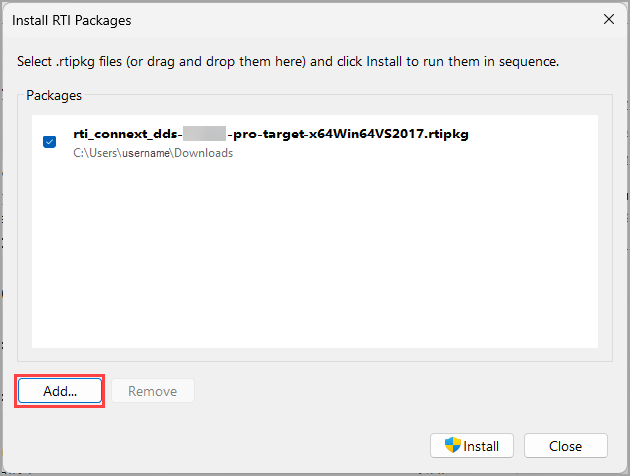
The RTI Package Installer displays all RTI products installed on your system. To install your target bundle, select Install RTI Packages, select Add, then select the
.rtipkgDrive target bundle. You can select multiple target bundles to install at once. After selecting the target bundle(s), click Install to complete the installation.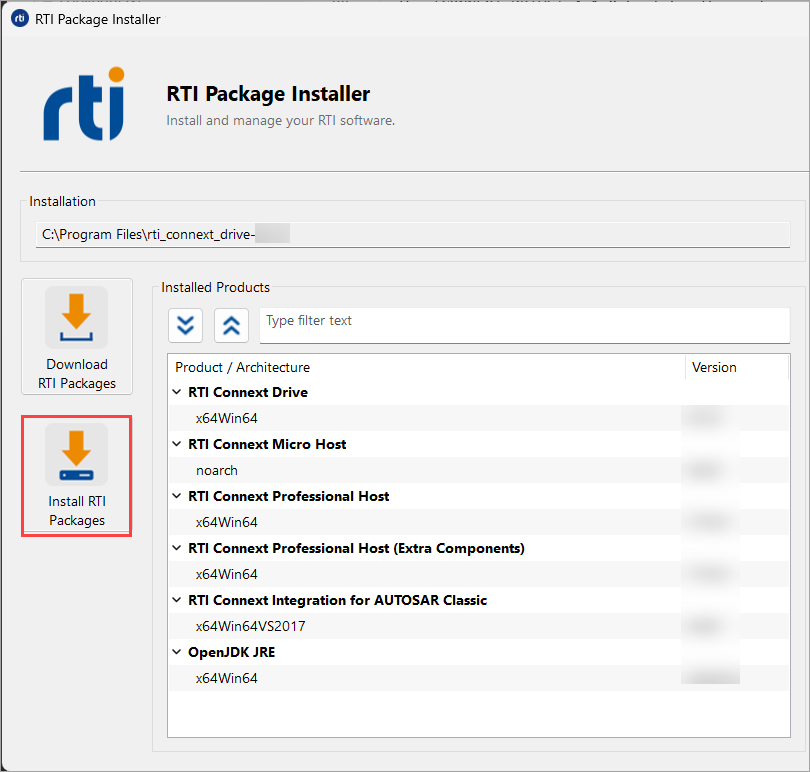
Using a command line:
Open a command prompt and run
<installdir>/bin/rtipkginstallto install the target bundle. For example (enter on one line):$ <installdir>/bin/rtipkginstall <path to rtipkg>
Open a command prompt and run
<installdir>/bin/rtipkginstallto install the target bundle. For example (enter on one line):$ <installdir>/bin/rtipkginstall <path to rtipkg>
Open a command prompt and run
<installdir>\bin\rtipkginstallto install the target bundle. For example (enter on one line):> <installdir>\bin\rtipkginstall.bat <path to rtipkg>
2.2.2. Installing a free version
The free (“lm”) Connext Drive bundle installs the following Connext Professional and Connext Micro hosts and targets for you:
Connext Professional includes the host, target and some add-ons (RTI Real-Time WAN Transport, Cloud Discovery Service, Security Plugins).
Connext Micro includes the host and target.
Connext Drive free evaluation bundle names include -lm in the filename,
for example: rti_connext_drive-4.1.0-lm-x64Win64exe.
A free version of Connext Drive is available as an evaluation
download from the RTI website
or from a public repository.
2.2.2.1. Installing a combined host/target
Follow these steps for installing a free “lm” bundle, which usually combines the host and target in a single bundle:
Download the “lm” bundle (for example: rti_connext_drive-4.1.0-lm-armv8Linux.run) to a location of your choice; for example,
/home/<your user name>/Downloads.
Run the “lm” bundle installer (the
.runfile). For example:/home/<your user name>/Downloads/rti_connext_drive-<version>-lm-<platform>.runFollow the on-screen prompts. You will be asked if you want to use the default installation directory (
/home/<your user name>) or specify a different path.You may need to add execution permission to run the installer. For example:
chmod +x rti_connext_dds-<version>-lm-<platform>.run
Download the “lm” bundle (for example: rti_connext_drive-4.1.0-lm-arm64Darwin.dmg) to a location of your choice; for example,
/Users/<your user name>/Downloads.
Double-click the host bundle
.dmgfile.
When the installer screen appears, double-click the icon in the screen to run the installer application.
Follow the on-screen prompts. You will be asked if you want to use the default installation directory (
/Applications/rti_connext_drive-<version>) or specify a different path. Note that the installer always places the product inside a folder namedrti_connext_drive-<version>.Note
If you do not install Connext in the default installation directory (
/Applications/rti_connext_drive-<version>), the Launcher icon might not display in the macOS Launchpad (see the Mac User Guide). You can still access the Launcher application in therti_connext_drive-<version>directory.
Depending on your version of Windows and where you want to install these files, your user account may require administrator privileges.
Download the “lm” bundle (for example: rti_connext_drive-4.1.0-lm-x64Win64.exe) to a location of your choice; for example,
C:\Users\<your user name>\Downloads.Install the “lm” bundle:
From File Explorer, double-click the bundle installer (the
.exefile).Follow the on-screen prompts. You will be asked if you want to use the default installation directory (
C:\Program Files) or specify a different path.
Typically, a separate target install is not required unless you are cross-compiling for a different CPU.
Important
A package with “lm” (for “license-managed”) in its name requires a license file to run. See Setting up a license for more information.
2.2.2.2. Telemetry data collected by free version
Telemetry data is shared with RTI only for free bundles
(bundles with “lm” in their name), via a TELEMETRY_DATA.json file. You
can enable/disable usage data sharing. See
Telemetry Data Collected by Free Version,
in the Connext Installation Guide, for more information.
2.2.3. Setting up a license
Most Connext Professional installations require a license file to run the tools or features included with Connext. If your distribution requires a license file, you will receive one from RTI via e-mail.
Method 1: Use RTI Launcher
The easiest way to configure your license file is using RTI Launcher, located under
rti_connext_drive-<connext-drive-version>/rti_connext_dds-<connext-professional-version>/bin/rtilauncher.
See Setting the License File
in the Launcher User’s Manual for more information.

Method 2: Copy the license file
If you do not want to use Launcher, you can also install a license by placing the .dat file in one
of two locations:
<installation directory>/rti_connext_drive-<connext-drive-version>/rti_connext_dds-<connext-professional-version>/rti_license.dat<workspace directory>/rti_license.dat
By default, the Connext workspace directory is in the following locations, depending on your operating system:
/home/<your username>/rti_workspace/<connext-professional-version>
/Users/<your username>/rti_workspace/<connext-professional-version>
<your Windows documents folder>\rti_workspace\<connext-professional-version>
Method 3: Configure the environment variable
Finally, you can configure the environment variable RTI_LICENSE_FILE
to point to your license file.
For more details, see the License Management section in the RTI Connext Installation Guide.
2.2.4. Checking what is installed
To find out what target libraries or add-ons you have installed, you can use the RTI Package Installer GUI tool or the Configuration tab in Launcher (see Starting Launcher in the RTI Launcher User’s Manual):
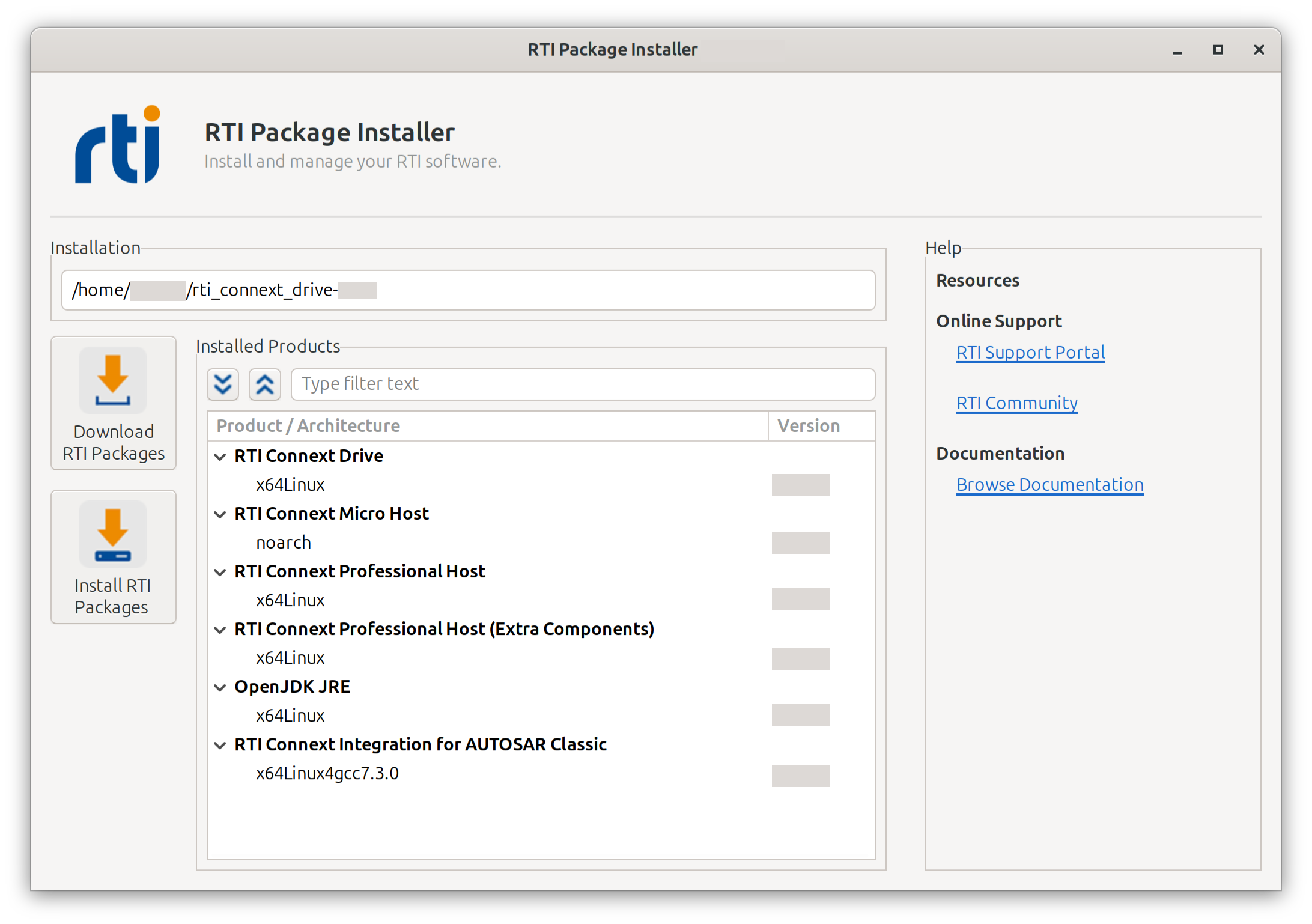
For example, to check which target architectures you have installed for
Connext Professional, click RTI Connext Professional Target
to see each installed target library and its version.

If you do not see any target libraries listed, you are missing a vital part of the Connext SDK, and you will not be able to compile your own applications. You can still run RTI tools such as RTI Admin Console.
2.3. Upgrading Connext Drive
Connext Drive allows you to upgrade its components independently.
2.3.1. Upgrading Connext Professional
Connext Drive 4.1.0 includes Connext Professional 7.7.0.1. To install a later version in your Connext Drive installation, download the desired version of Connext Professional host and target bundles from the RTI Support Portal, then follow the steps below:
Install the release host package.
Install the release target package.
Install add-ons: host first, then target.
Attention
If the package has “target” in its name, you must install its corresponding host first. Never install only a target package in any release. Follow these instructions so that you do not mix release versions in the same installation directory.
Using Connext Professional 7.7.0.2 as an example, install the packages as follows:
Install the 7.7.0.2 host package (for example, rti_connext_dds-7.7.0.2-pro-host-<host_platform>.rtipkg) for your platform using the RTI Package Installer.
Install the 7.7.0.2 target package (for example, rti_connext_dds-7.7.0.2-pro-target-<architecture>.rtipkg) using the RTI Package Installer.
(Optional) Install other add-ons that you might be using. For example:
rti_security_plugins-7.7.0.2-host-openssl-3.5.9-<host_platform>.rtipkg, followed by rti_security_plugins-7.7.0.2-target-openssl-3.5.9-<architecture>.rtipkg
rti_connext_dotnet_support-7.7.0.2.rtipkg
rti_cloud_discovery_service-7.7.0.2-host-<host_platform>.rtipkg, followed by rti_cloud_discovery_service-7.7.0.2-target-<architecture>.rtipkg
2.3.1.1. Release and patch directory structure
Major three-digit releases, such as Connext Professional 8.0.0, install in a
completely new directory (rti_connext_drive-4.1.0\rti_connext_dds-8.0.0).
Conversely, four-digit patch releases like 7.7.0.2 are installed directly on
top of the existing three-digit base directory (rti_connext_drive-4.1.0\rti_connext_dds-7.7.0).
Because the target folder name omits the fourth digit of the patch version,
you can verify a successful patch deployment by inspecting the
rti_versions.xml file inside the base installation folder.
2.3.1.2. Public header file changes
Most four-digit patch releases contain public header file changes that are incompatible with previous releases. Therefore, you should install patches into a new directory (not on top of your current installation). You shouldn’t mix and match packages or products from other releases.
For example, if you are upgrading to 7.7.0.y and you are using Security Plugins with OpenSSL, do not continue using Security Plugins with OpenSSL from 7.7.0 or a previous 7.7.0.x release, but install the Security Plugins package from 7.7.0.y (for example, rti_security_plugins-7.7.0.y-host-openssl-3.5.9-<host_platform>.rtipkg).
This rule applies to all Connext products supported in 7.7.0, whether or not they are already included in your patch. (If they aren’t, you can request them.)
2.3.2. Upgrading Connext Micro
Connext Drive 4.1.0 includes Connext Micro 4.3.0. To install a later version of Connext Micro in your Connext Drive installation, download the desired version of Connext Micro host and target bundles from the RTI Support Portal, then follow the steps below:
Install the host package (for example,
rti_connext_dds_micro-<version>-host-<architecture>.rtipkg) for your platform using the RTI Package Installer.
Install the target package (for example,
rti_connext_dds_micro-<version>-target-<architecture>.rtipkg) using the RTI Package Installer.
Connext Micro releases are installed in a completely new directory
(for example, rti_connext_drive-4.1.0\rti_connext_dds_micro-<version>).
2.4. Where Do I Get More Help?
Advanced installation assistance is available in the RTI Connext Installation Guide, which explains:
Installer command-line options
Controlling the location of the RTI Workspace directory
Additional license management options
How to uninstall Connext
Additional documentation for RTI products and user forums are available on community.rti.com. If you have additional questions or concerns, please contact your sales team.