2.4.1. Working with Types
To introduce new types in your project, right-click on the Types node in the Tree View and add one of the top-level types:
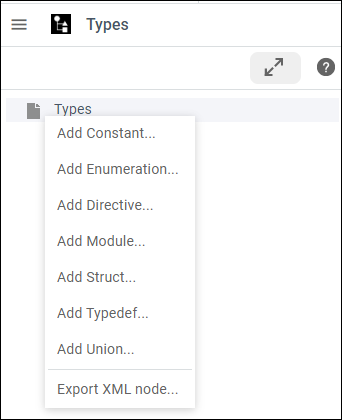
For more information on data types, see Introduction to the Type System, in the RTI Connext DDS Core Libraries User’s Manual.
In this example, we are adding two structures, NewStruct1 and NewStruct2:
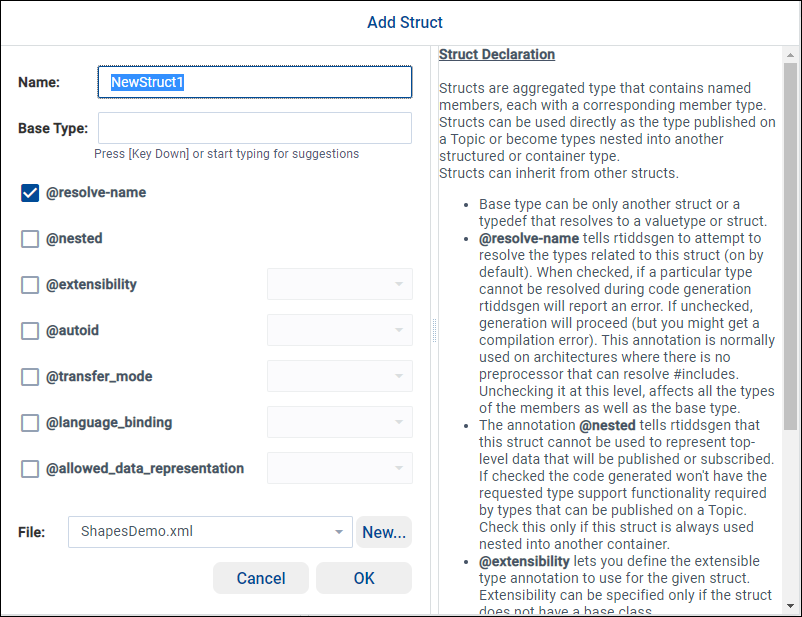
The pop-up shown above will guide you in creating a new type. You can choose the Name and, optionally, the Base Type. You can also select one of the annotations presented on the screen.
By default, the new object will be added to the last XML file used, but you can use the drop-down menu to select any XML file or use the New… button to add new XML files to your System Designer project.
Once you have added the top level, go to the Structured view and
populate the new type using the  button:

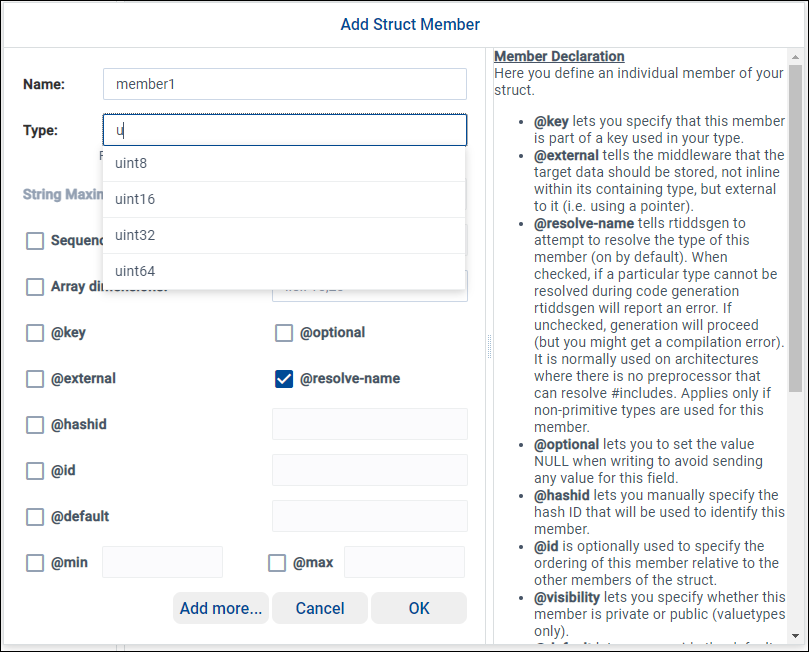
A pop-up will help you select the types and the right values. In this example, we are adding:
A uint8 named ‘member1’ and a bounded (255) keyed string named ‘member2’ to the NewStruct1 structure.
A byte named ‘member1’ and a char8 named ‘member2’ to the NewStruct2 structure.
The Types view allows you to explore the types in three ways:
Structured view
XML view
IDL view
Tip
The RTI Connext DDS Core
Libraries Extensible Types Guide
has a mapping of type names in IDL 4.2. (For example, you may want to
know that a long is called int32 in IDL 4.2).
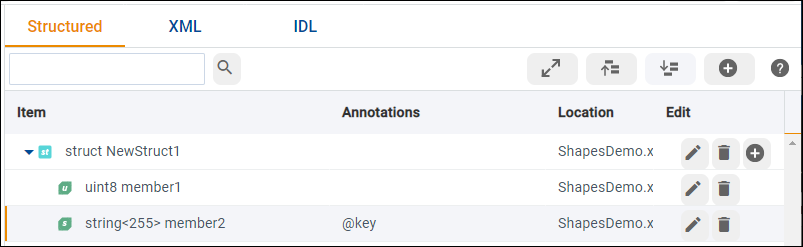
The Structured view is the simplest way to explore and modify the types
in your system. The  button allows you to go as deep as
needed when exploring types.
button allows you to go as deep as
needed when exploring types.
In the Item column, you will see the name and type of a specific element of your type.
In the Annotations column, you can see things like the ID of a member; you can see if the member is a key, or if it is an optional or appendable member.
The Location column will indicate in which file the member is defined, in case you have a project with multiple XML files.
The Edit column contains buttons to alter the selected item. Container objects such as structs, unions, and modules have a
button to add a child to them.
You can use  to rearrange all the objects.
Currently you cannot move elements in or out of a container (e.g., moving a struct out of a module is not currently supported). To do that, you can always switch to the XML view and modify the XML manually.
The XML view shows the types in XML format. You can highlight a specific member by selecting it in the tree on the left panel:
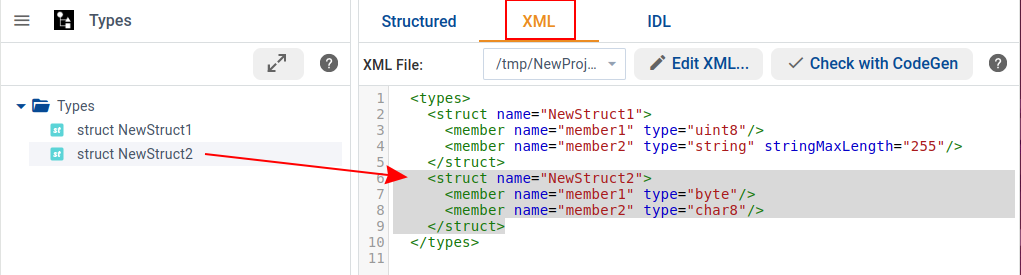
You can also click on  to edit
your XML file manually. All the changes will be reflected
in the Structured view.
to edit
your XML file manually. All the changes will be reflected
in the Structured view.
Finally, the IDL view shows you the IDL definition of the type:
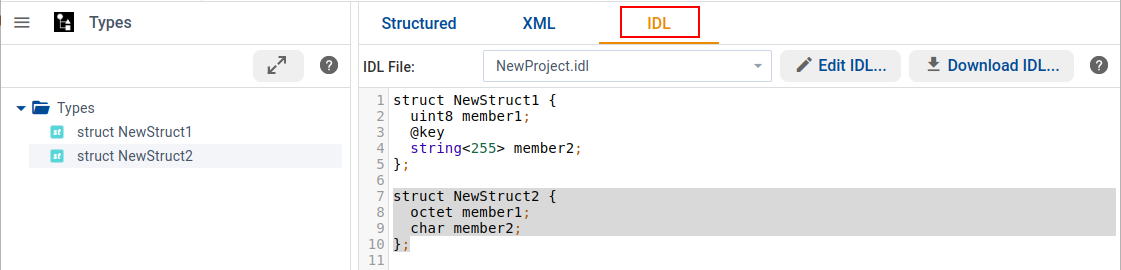
You can use the IDL view to:
Edit the IDL file manually by clicking the
 . All the
changes will be reflected in the Structured view.
. All the
changes will be reflected in the Structured view.Download the IDL type using the
 button.
(After you click this button, a dialog box opens; click the “Download”
link at the bottom.)
button.
(After you click this button, a dialog box opens; click the “Download”
link at the bottom.)