2.2. Creating New Projects
A project is a container file that holds all the XML configuration files
for the system architecture you design in System Designer. When you create a new
project, System Designer creates a project (.rtisdproj) file. You can then use
System Designer to add components to the file and build your application in a
graphical interface.
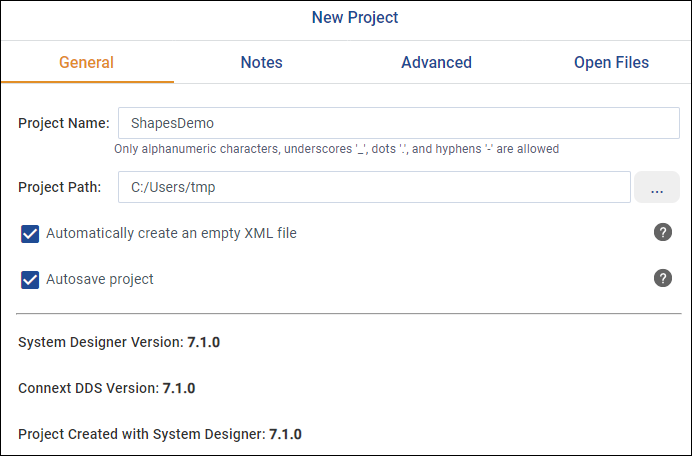
Use the Create New… command to open the Create New Project dialog.
To create a new project upon opening System Designer, select Create New… in the Select or create project dialog.
To create a new project after opening System Designer, go to Projects > Create New….
The Create New Project dialog provides two methods for creating a project:
Create with Template: Create a project pre-populated with example XML elements.
Create with AI: Create a custom pre-populated project using a natural language description.
2.2.1. Create with Template
The Create with Template option enables you to use the provided templates for guidance when creating your system architecture. Each template represents a specific use case and includes example XML elements to help you get started configuring your DDS system. You can use the templates to learn about System Designer, and also edit the example elements to begin building your own application.
To create a new project after clicking Create New…:
Enter a unique Project Name.
In Project Path, select where to save the project.
In Create project from template, choose a template on which to build your project. If you don’t want to use a template, select Empty.
Click OK to generate the project.
When creating a project from a template, the new project is populated with a simple type, basic QoS settings, several preconfigured Topics, and DomainParticipants with example DataReaders and DataWriters. There are two templates available in this release, described in Table 2.1. See the Template Description in the dialog for additional details about the elements included in each template.
Template |
Use Case |
Description |
|---|---|---|
ShapeType |
Use this template to explore how the System Designer interface works. Use it in conjunction with Shapes Demo to review how to manage domains, DomainParticipants, and QoS settings. |
This template uses the ShapeType structure, the same data type used in Shapes Demo. It includes simple QoS settings, a single domain with three Topics, and four DomainParticipants. |
Hello World |
Use this template as a guide to create a new System Designer project. Modify the example elements as needed to begin building your application. |
This template uses a simple data type. This type is registered in a single domain with one associated Topic. |
Note
RTI Shapes Demo is a demonstration application that provides an introduction to Connext concepts. For more information, see the Shapes Demo User’s Manual.
2.2.2. Create with AI (Experimental)
Note
Connext AI is an experimental feature included in this release for evaluation only. Use it to explore the new AI features supported in System Designer.
Carefully review and test AI-generated suggestions before deploying in production.
The Create with AI option lets you leverage RTI’s Connext AI platform to generate a pre-configured project based on the description you provide. To use this feature, you must be logged into Connext AI.
To create a new project after clicking Create New…:
Enter a unique Project Name.
In Project Path, select where to save the project.
If prompted to log in, click the You need to Login… command and enter your Connext AI credentials.
If you do not have a Connext AI account, go to https://chatbot.rti.com/ to sign up.
In Project Description, use natural language to describe the project you want to create, then click OK.
The AI Suggest Model dialog displays the suggested AI-generated XML tree. Review the suggestion to determine if it works for your project.
If the XML fits your needs, select Accept Suggestion.
Your new project is created and opens populated with the suggested XML architecture.
If the XML does not fit your needs, select Reject Suggestion.
The completed Create New Project dialog reopens. You can change the description to refine the suggested model. Otherwise, select Cancel.
After logging in to Connext AI, you may be prompted to log in again after a period of inactivity.
Important
You need to create and log into a Connext AI account to use this feature. By proceeding, you agree to RTI’s Privacy Policy and Terms of Use. When you log in, you provide access to your prompts as well as your system design information as context to the AI backend. Sharing of this data is necessary to help tailor the responses to your specific needs. You can opt out of sharing data with Connext AI by logging out and not using this feature. To request deletion of historical data from your account, reach out to support@rti.com.