2.1.3. Admin Console Setup
2.1.3.1. Opening Admin Console
Open RTI Launcher and, from the Tools tab, open Admin Console. When prompted, select to join domains automatically or manually. To monitor a remote system, select Connect to a server and enter the remote server’s URL.
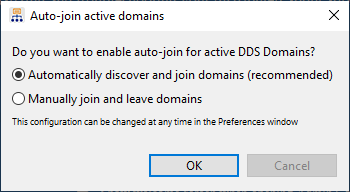
To manage domains after opening Admin Console, go to View > Preferences > Administration. For more information, see Administration preferences.
2.1.3.2. Domain Setup
Admin Console uses Connext to communicate with other RTI services and Connext processes. When first started, Admin Console asks if you want to automatically or manually join domains. It also includes an option to connect to a remote server.
We recommend using the auto-join option as you go through this manual. To change this setting, go to View > Preferences > Administration. For more information, see Administration preferences.
2.1.3.3. RTI Services Setup
To use Admin Console with other RTI Services, the following features must be enabled in Connext:
monitoring (if supported)
The tutorial in this manual uses preset RTI Launcher configurations that enable these features by default.
2.1.3.4. Troubleshooting Admin Console
The Admin Console logs can assist in troubleshooting. To access, go to View > Show > Console Log.
By default, the full log file is located in:
Windows systems:
<Documents>\rti_workspace\<RTI version>
\user_config\admin_console\<architecture>\admin_console.log
Linux and macOS systems:
~/rti_workspace/<product version>/user_config
/admin_console/admin_console.log
To review Admin Console’s known issues, see the Release Notes.