2.2.11. Step 11: Graphical Data Publishing
Admin Console can publish samples for a selected Topic. This feature can help in debugging systems, validating data samples, and prototyping. Discovered and undiscovered Topics can be published, enabling you to pre-configure publication settings before running in production. An XML file with the TypeCode definition is required.
Admin Console uses Python code to fill in the content of the samples and, once the code to fill in the samples is ready, you can choose how to execute that code. The code can be used to publish the sample, cache it in memory, or execute the code periodically caching and/or publishing the resulting samples.
In this step of the tutorial, we’ll see how to use Admin Console to publish samples for a specific Topic.
2.2.11.1. Preparing Admin Console to publish
Before you can publish samples, you must prepare your system. Otherwise, Admin Console will report a problem indicating it cannot publish samples and that the publication is disabled. These errors appear in the Admin Console Preferences dialog, in the Python section.
For example, the following image shows an invalid configuration. The Python version is not valid and the Connext Python DDS API is not found. Because the configuration is incorrect, the Publication Status is set to disabled.
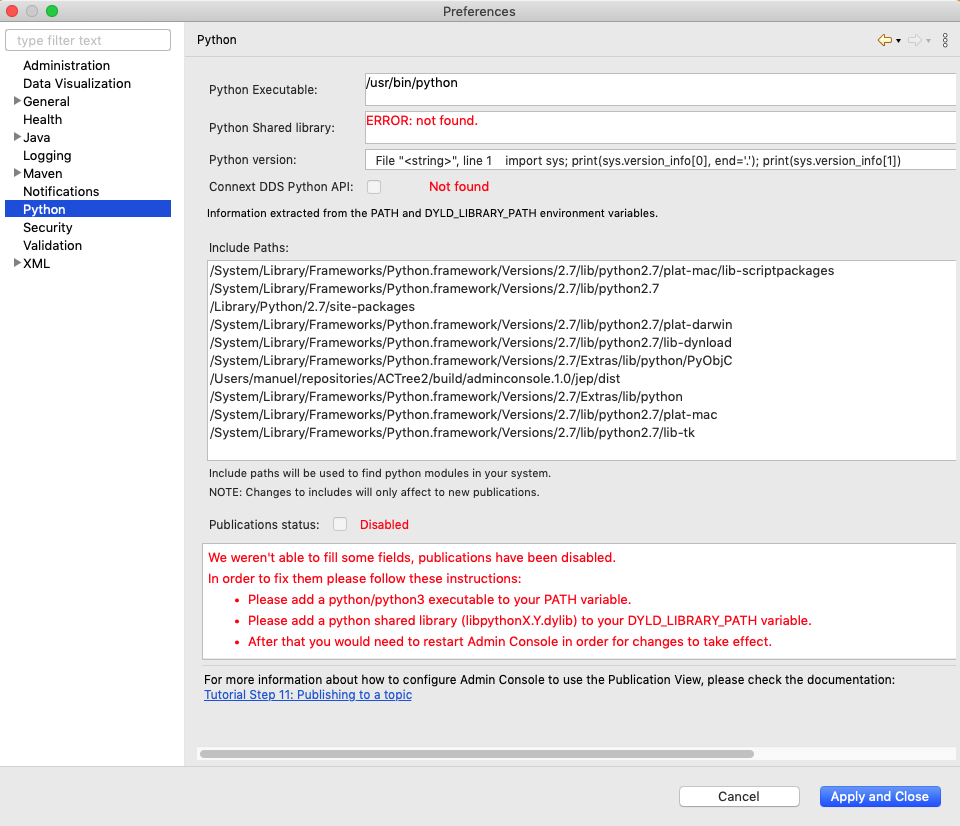
As seen in the above image, Admin Console is not ready to publish data. These errors occur because Admin Console relies on the Connext Python API to publish samples to a specific Topic. To be able to publish to a Topic, Admin Console checks that the system meets some specific requirements, including what Python version is installed.
When creating a publication or opening the Python preferences page, Admin Console checks if the Connext Python API is installed in your system and uses it to publish data. If the Connext Python API is not installed, Admin Console unzips the corresponding wheel from your Connext installation and loads it automatically at runtime. When extracting the Python wheel file, Admin Console does not install anything in your system; it just makes Python available for use in Publication view. Alternately, you can manually install the Connext Python API; for instructions, see Installing Connext in the RTI Connext Installation Guide.
Note
For Windows users: The Python distribution available in the Windows Store has a specific folder configuration that may result in the OS denying access to the Python executable and the Python shared libraries from Admin Console.
Due to this, it is not recommended to use this distribution of Python. To use
Graphical Data Publishing in Admin Console, we recommend downloading Python
directly from the official Python page: https://www.python.org/.
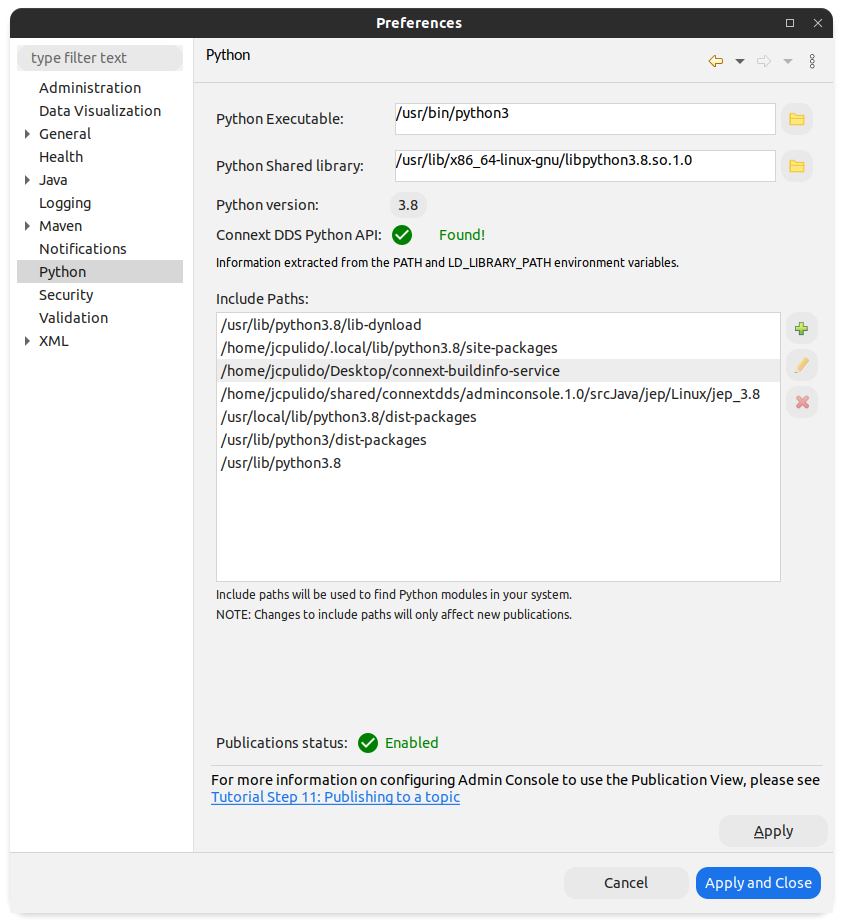
After following the Python installation instructions in the RTI Connext Installation Guide, everything should be ready for Admin Console to publish samples. In the Preferences panel, you will see that the Connext Python API has been found and the Publications status is enabled.
Note
Admin Console automatically detects the Python version installed and uses a valid configuration according to that Python version and the Python API wheels that are installed. If Admin Console cannot find the Python version automatically, you can specify it in the following ways:
- Through the file button
 :
: You can select which Python executable and shared library to use with the button
next to each field. You can also specify a path manually inside
the text fields. After selecting the file, click the Apply button.
You will see a warning that a reboot is required to apply the settings.Warning
On macOS systems, this dialog cannot be used to select Python shared libraries. This is due to a limitation in the system’s file dialog: it will not allow you to select a soft link. However, you can provide the path manually in the text field and it will work just fine.
- Through the file button
- Through environment variables:
The PATH environment variable should include the location of the Python executable. The library search path environment variable should include the location of the Python library files, as follows:
On Windows systems,
python<version>.dllcan be set using the PATH environment variable.On Linux systems,
libpython<version>.socan be set using the LD_LIBRARY_PATH environment variable.On macOS systems,
libpython<version>.dylibcan be set using the DYLD_LIBRARY_PATH environment variable. Please note that the DYLD_LIBRARY_PATH value can be removed by the operating system according to the Apple Runtime Protections.
If Admin Console is not able to find the Python library files and this configuration is not correct, Admin Console will not be configured correctly and the Graphical Data Publishing feature will be disabled.
The values for the Python Executable file and the Python Shared libraries can be changed in this preference dialog. This will cause the values found in the environment variables to be overwritten. Additionally, changing those values will cause Admin Console to be restarted or it will not be able to use the provided values.
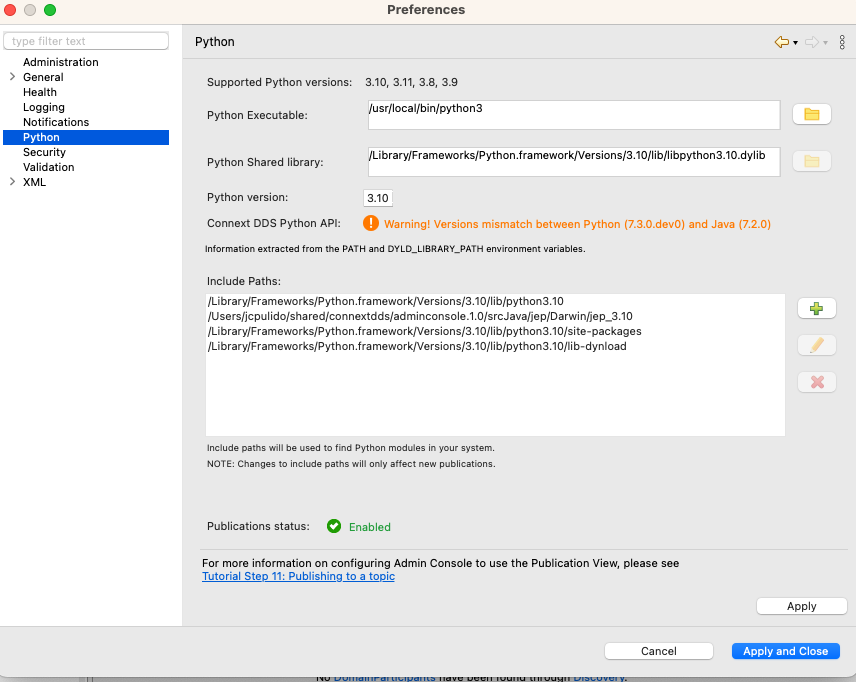
If the Connext Python API version is different from the Connext Java API used by Admin Console, the following warning displays in the Admin Console Preferences dialog. Typically, this warning occurs when there is an installed Connext Python API wheel from a past release. To get rid of this warning, follow the instructions above to install the Python API binding for the current release.
2.2.11.2. Python and Graphical Data Publishing interoperability
Before running Graphical Data Publishing, Admin Console checks to confirm the installed Python version is compatible. This test ensures that JEP, used internally by Graphical Data Publishing, can be used with the installed version of Python.
If Python and JEP are compatible, Admin Console enables Graphical Data Publishing. If Python and JEP are not compatible, the following error displays in the Python Preferences page.
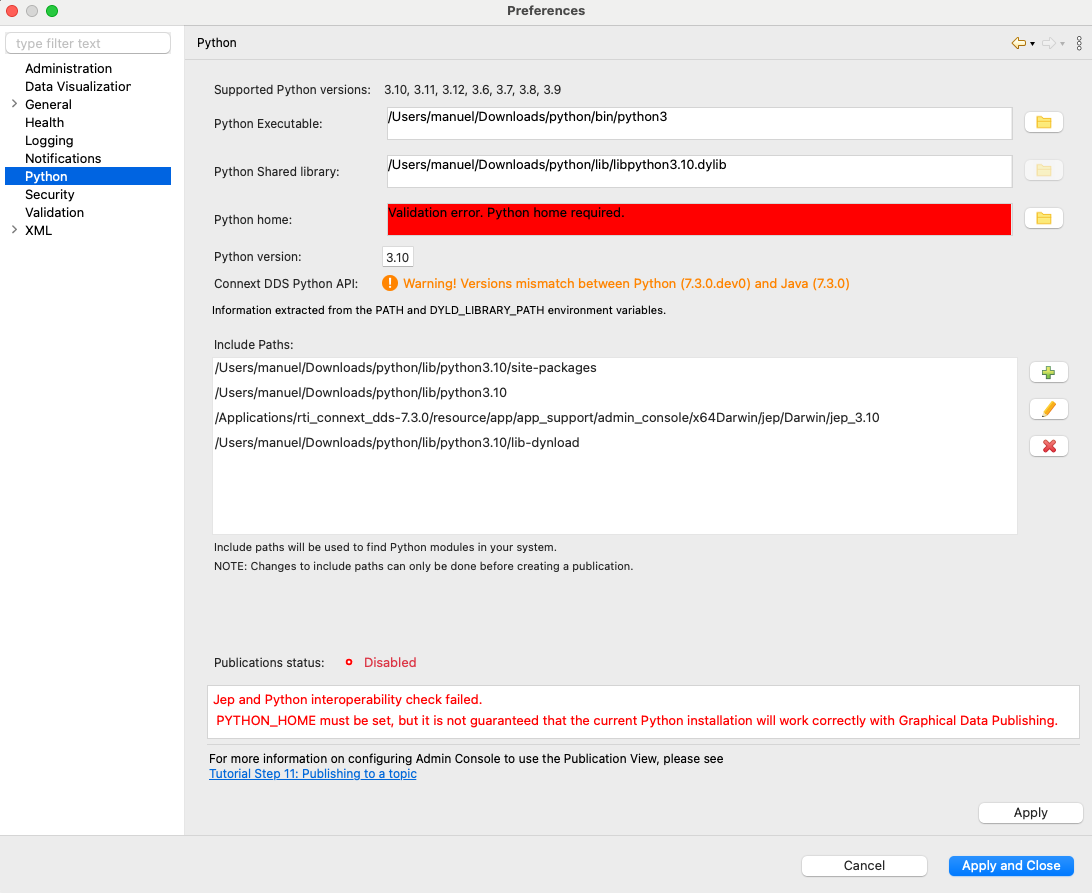
To prevent Admin Console from crashing when this error occurs, set the Python home field to the folder containing your Python installation. Applying this setting does not guarantee the installed version of Python is compatible with Graphical Data Publishing, and you may not be able to publish samples.
To prevent this error from recurring and ensure publication works as expected, download and install a new version of Python from the Python downloads site.
Note
The Python home field is not usually visible in the Admin Console Python Preferences page. This field is visible only when the information is required, or the field was already completed, to address a Python compatibility issue.
2.2.11.3. Configuring the scenario
First, let’s configure the testing scenario using Admin Console and Shapes Demo:
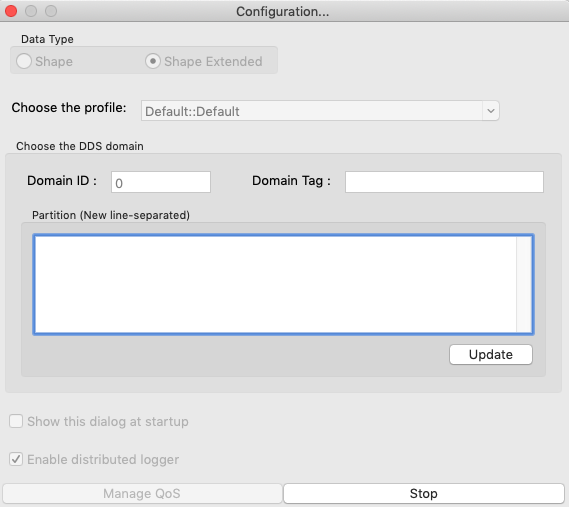
Use Launcher to start an instance of Shapes Demo. Make sure that this instance of Shapes Demo doesn’t use Partitions or Domain Tags. To do this, go to Controls > Configuration and make sure that the Domain Tag is empty and there are no partitions. Then create a Square Subscriber using the default configuration.
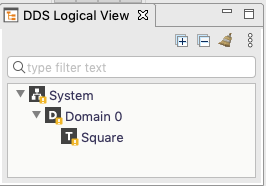
In Admin Console, make sure Automatically discover and join domains is selected in Preferences, then wait until the new instance of Shapes Demo is discovered and the Square Topic is visible in the DDS Logical View. You will see a warning because the Topic is currently read-only.
2.2.11.4. Creating an Admin Console publication
The process to create a publication in Admin Console for a specific Topic is very similar to creating a subscription. There are two ways to access the Create Publication dialog:
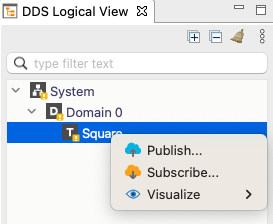
Using the context menu in the DDS Logical View: Right-click the Square Topic in the DDS Logical View and select Publish….
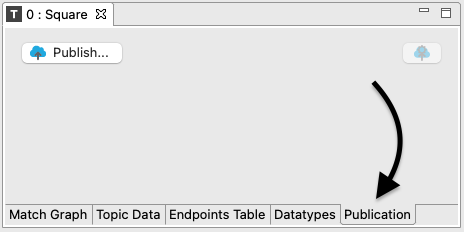
Using the Publication tab: Select the Square Topic in the DDS Logical View, open the Publication tab in the Topic View, then click the Publish… button.
Use either of these methods to open the Create Publication dialog. Here you can create a publication and configure its QoS (click Advanced Settings to view QoS configuration options). For now, we will use the default configuration, so you don’t need to change settings in this dialog.
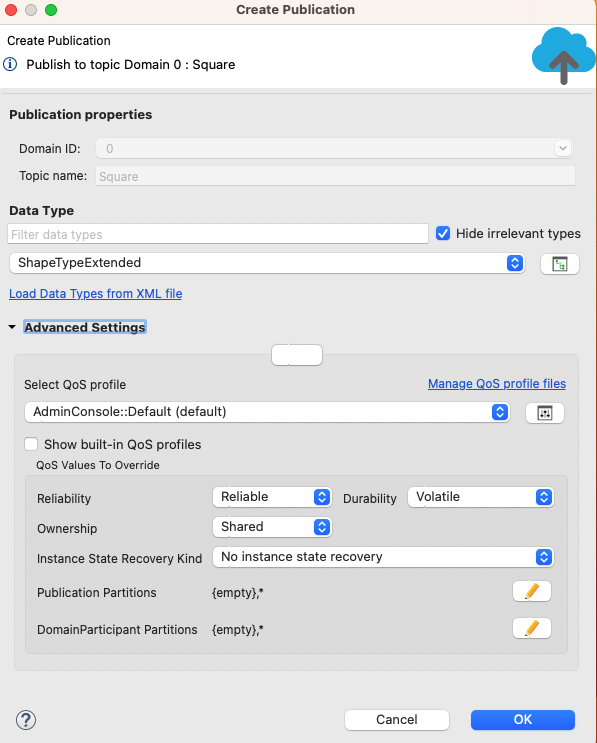
The Domain ID and Topic name fields are already completed and cannot be changed because the Publication was created for a Topic that was already discovered in the domain.
To create the Publication, click OK in this dialog. Admin Console is now able to publish samples.
2.2.11.5. Publication tab
When the Admin Console Publisher is created, the Publication tab opens. This view contains all the elements required to publish samples of our Topic.
The Publication tab has two areas: a code editing area on the left, and tabs with detailed information on the right.
The code editing area contains all the elements required to edit the code that will fill in the samples. Note that the code editing area is loaded with example code that fills in a sample for the Square Topic.
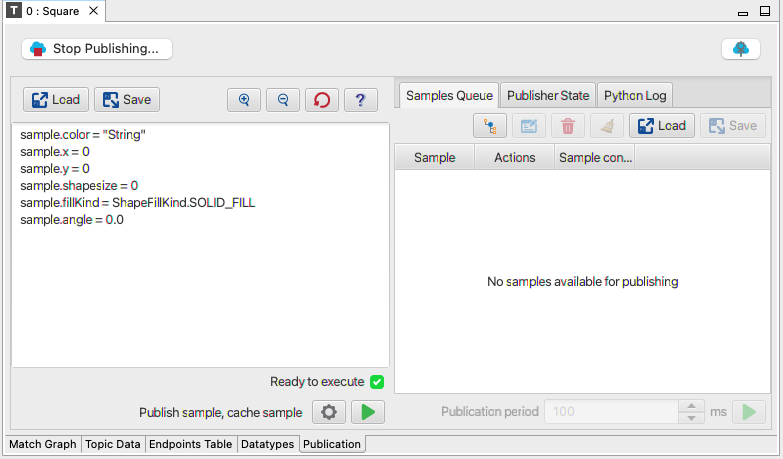
Let’s look at the actions you can take in the code editing area:
The Load button
 loads a previously stored script.
The Save button
 saves the current script in a Python file.
The Reset code button
 resets the code in the code
editing area with the provided example code.
resets the code in the code
editing area with the provided example code.The Help button
 opens documentation about Graphical Data
Publishing.
opens documentation about Graphical Data
Publishing.The Publication state area
 indicates if the code
executor is ready to execute, or it may show the last result from
executing the code. At this time, it should indicate that the
Publisher is ready to execute.
indicates if the code
executor is ready to execute, or it may show the last result from
executing the code. At this time, it should indicate that the
Publisher is ready to execute.The Code execution options button
 controls how
the code will be run.
controls how
the code will be run.The Execute code button
 runs the code, based on the
Preferences. The label before shows how
the code will be executed.
runs the code, based on the
Preferences. The label before shows how
the code will be executed.
The detailed information area on the right shows the results of the execution. The Samples Queue tab shows information about the samples that are cached. At this point in the tutorial, this tab is empty because we haven’t cached any samples yet.
Let’s take a brief look at what you can do with samples stored in the Samples Queue:
Select the fields to show in the Sample Content section
 .
.Edit a selected sample
 .
.Remove selected samples
 .
.Clear the Samples Queue
 .
.Load a saved samples archive
.Save the listed samples
in a Python or Zip
archive. See Save Samples for more information.
We will use these buttons later in this tutorial.
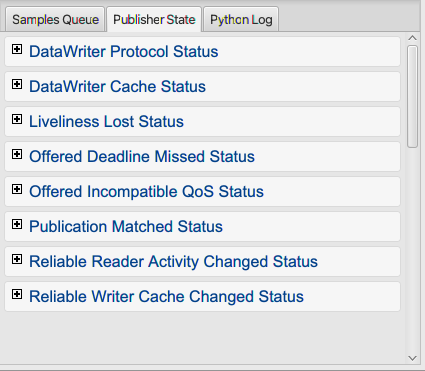
The Publisher State tab displays information about the Publisher generated by Admin Console, organized in sections.
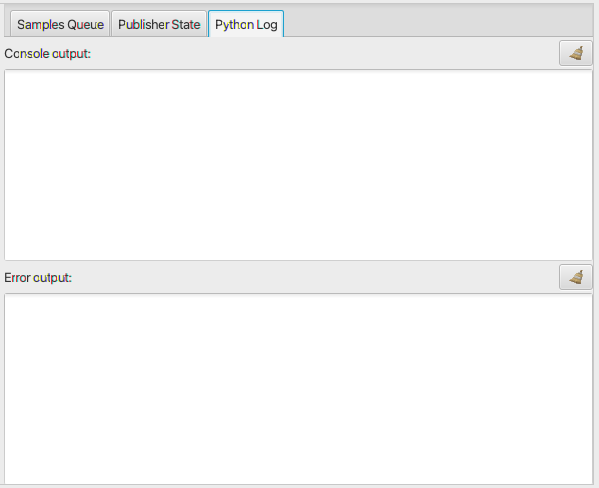
The Python Log tab shows the Python output from the executed code. The log has two categories, normal console output and errors.
2.2.11.6. Publishing samples
Now that we know the elements in the Publication tab, it’s time to publish some samples. We will publish a yellow square.
Modify the code in the code editing area as follows:
sample.color = "Yellow"
sample.x = 30
sample.y = 30
sample.shapesize = 20
sample.fillKind = ShapeFillKind.SOLID_FILL
sample.angle = 45.0
As you can see, we are filling in the sample with the color Yellow, at the X-Y position (30, 30), with a size of 20 units, solid fill, and an angle of 45º.
There are several code execution options available using the
button. Note that the label preceding this button indicates which options are
currently selected. For now, use the default behavior,
which is to publish the sample and cache its value, executing the code
only once.To begin publishing sample data, click the Execute Code button
at the bottom of the code editing area. Look in
the Samples Queue tab and you’ll see the first sample.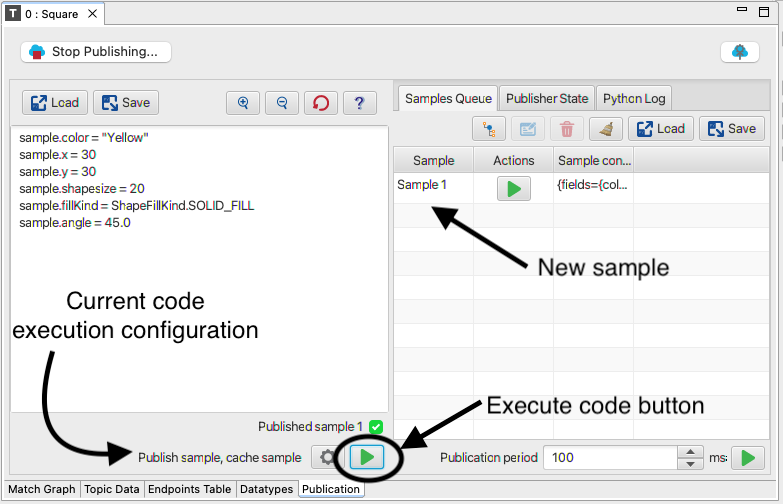
Note that, if the execution was correct, the publication status is reported below the code editing area, indicating the last sample that was published
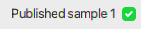 . The number of published samples
shown in the status area is the same as the number of samples listed
in the Samples Queue. If the sample is not stored,
the publication status would indicate that a sample was published
without caching it in the Samples Queue.
. The number of published samples
shown in the status area is the same as the number of samples listed
in the Samples Queue. If the sample is not stored,
the publication status would indicate that a sample was published
without caching it in the Samples Queue.The published sample appears in Shapes Demo.
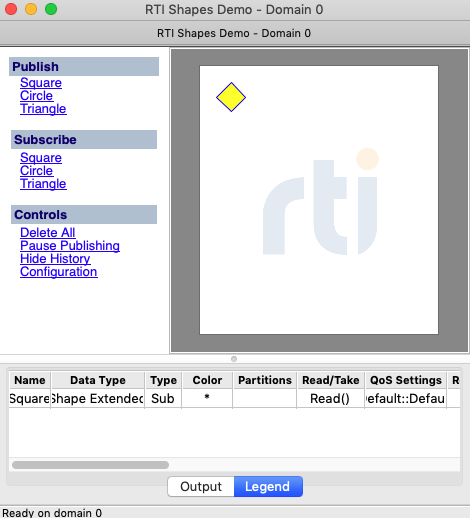
Before we publish more samples, let’s change the position and rotation of the sample. Admin Console stores the value of the last published sample, which simplifies this task. First, we’ll change how the code is executed.
Click
to open the Code execution options dialog
where you can choose how to publish the samples.Check the Execute code periodically checkbox, and set ms period to 500 to configure a 500 ms delay between executions.
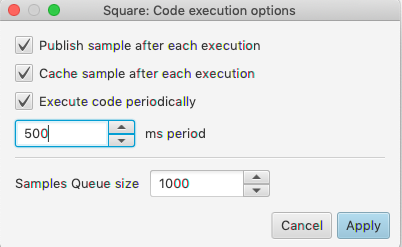
Click OK, then notice that the label before the
button changed. Now it shows that the code will be executed with a 500 ms period.
Next, we’ll change the position and angle of the square. In the code editing area, edit the code as follows:
sample.x += 5
sample.y += 10
sample.angle += 5

if (sample.x > 250):
    sample.x = 0
if (sample.y > 250):
    sample.y = 0
The above code will cause each sample to move 5 units on the X axis and 10 units on the Y axis. At the same time, we will rotate the square 5 degrees, and, if it exceeds the limit of 250 units on either axis, the square will move back to the 0 position on that axis.
Click
to run the code. Notice the following:The Execute Code button
is replaced with a
Stop Execution button  .
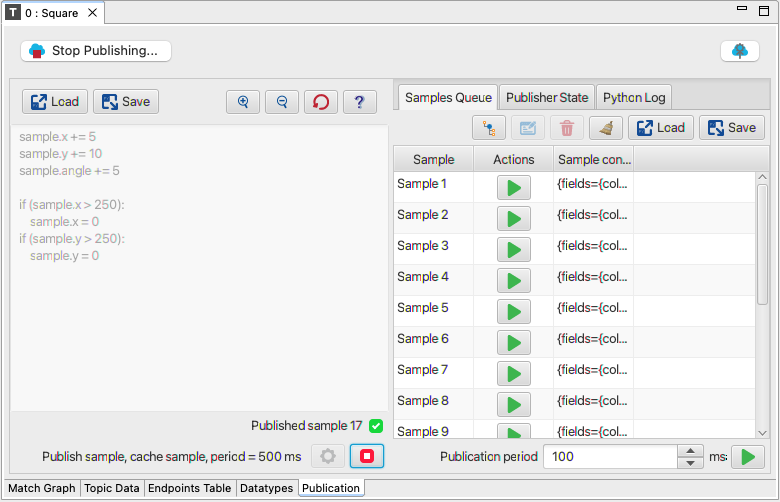
.The Samples Queue begins filling with all the published samples.
The code editing area is disabled. This code cannot be modified while it is being used to publish samples.
Shapes Demo is receiving all the samples.
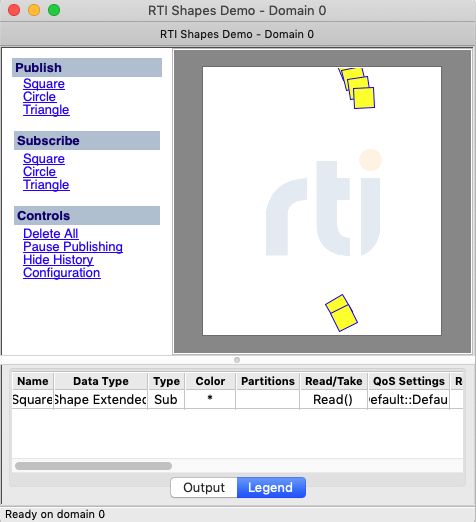
In Shapes Demo, you can see the last published samples. The number of samples that appear is based on the depth of the History QoS (by default, 6).
After some samples have been published, click
.Shapes Demo stops receiving samples, the Samples Queue doesn’t show new samples being added, and the code editing area is editable again.
Next, change the code execution options so that samples will not be cached in the Samples Queue. Click
to open the
Code execution options dialog, then uncheck “Cache sample after each
execution”.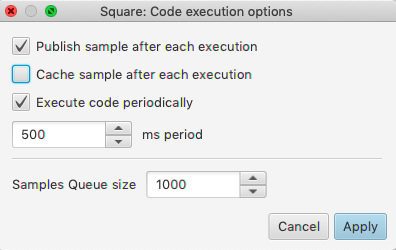
We also want to print the samples’ X and Y values in our Python Log. Change the code to add a print statement, like the last line here:
sample.x += 5
sample.y += 10
sample.angle += 5

if (sample.x > 250):
    sample.x = 0
if (sample.y > 250):
    sample.y = 0

print (f'X= {sample.x}, Y= {sample.y}')
Run the code by clicking
. As a result, Shapes Demo
will still receive the published samples, but those samples will
not be added to the Samples Queue because we unchecked the option
to cache samples in the Code execution options dialog.Select the Python Log tab. You should see messages with X and Y positions in the “Console output” section.
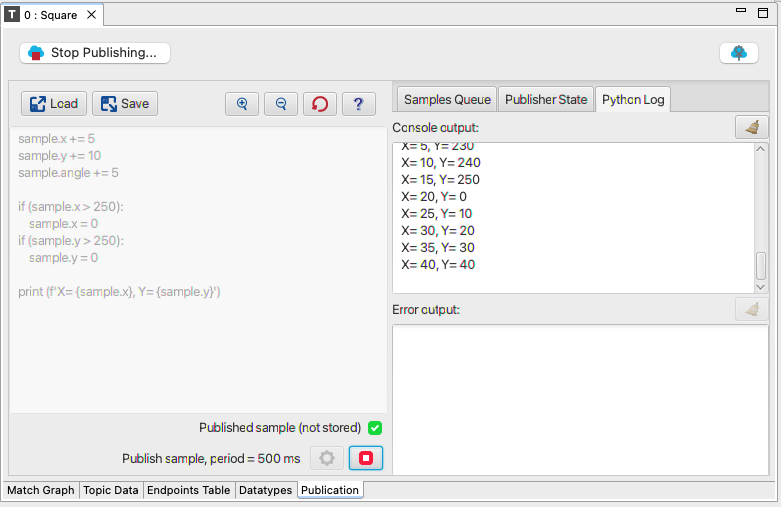
As can be seen in the above image, the result of the execution indicates now that the sample was published but it was not stored in the Samples Queue
 .
.Click
to stop execution.Click
to reset the code in the code editing area.
This reset removes our code changes and returns to the provided
example code that fills in a generic sample for the specific Topic.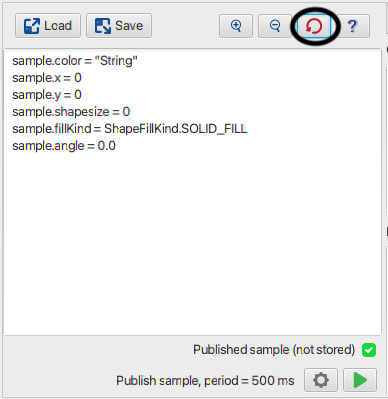
2.2.11.7. Working with the Samples Queue
Now that our Samples Queue has some samples, we will make some changes to the already existing samples.
Select the third sample in the Samples Queue. Click the Edit Sample button
. This button is only enabled when one sample
is selected.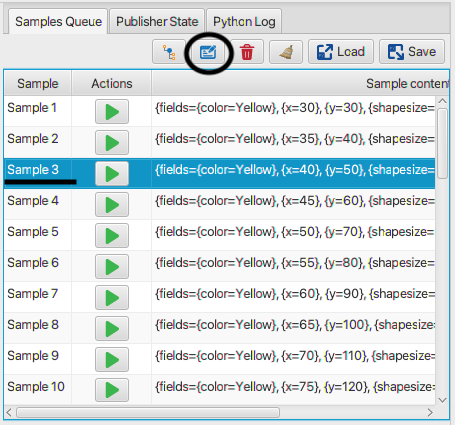
The Sample editor dialog opens where you can modify the selected sample. This code can be used to create the selected sample. To modify the sample, change the color to “Red” and the size to 50, then click OK.
Sample_3 = ShapeTypeExtended()
Sample_3.color = "Red"
Sample_3.x = 40
Sample_3.y = 50
Sample_3.shapesize = 50
Sample_3.fillKind = ShapeFillKind.SOLID_FILL
Sample_3.angle = 55.0
We can see that Sample 3 is updated in the Sample Queue. Now it has the color Red and its shapesize is 50.
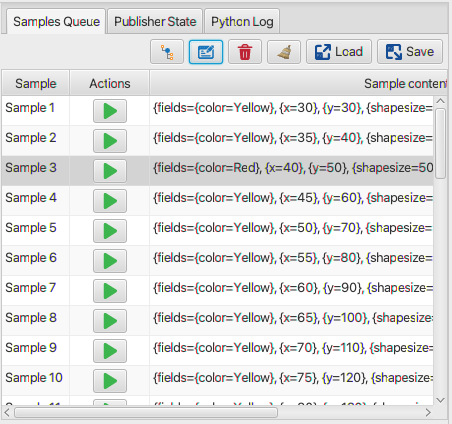
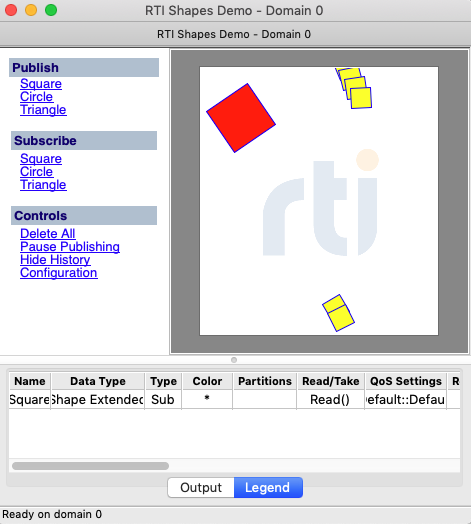
Next we want to publish all the samples that are in the Samples Queue. At the bottom of the information area, set the Publication period to 200 ms, then click
to publish all
the samples in the queue.In Shapes Demo, you will see a red square with a size of 50.
Now let’s edit one sample and publish only that sample, not the full Samples Queue. Select Sample 2 and click
.
Change its color to “Orange”, then click the
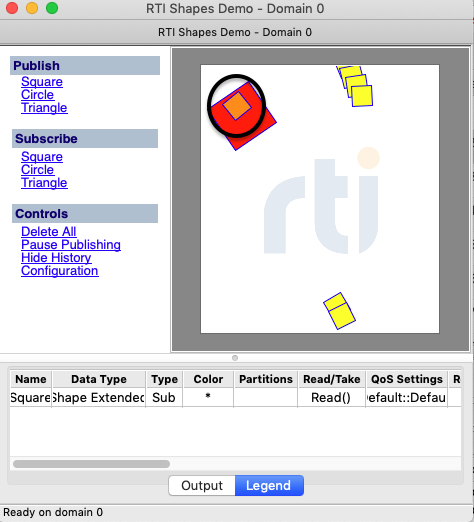
that is next to the sample. This will publish only Sample 2.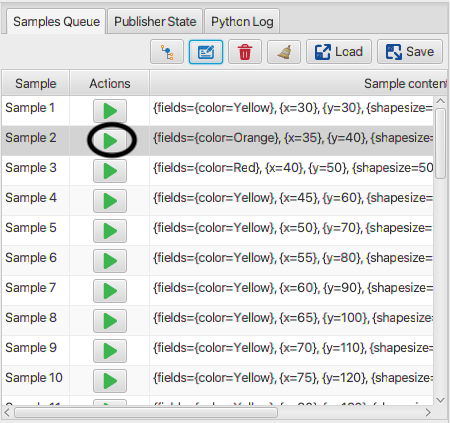
You will see the orange square in Shapes Demo.
Now save all the samples to a Python script by clicking
.
In the Save sample queue dialog, select Python archive, then
click OK. In the Save as dialog, enter a file name, choose a
location, and click Save.After saving, clean up the Samples Queue by clicking
.
The Remove samples dialog indicates the number of samples to be
removed. Click Yes to confirm the removal.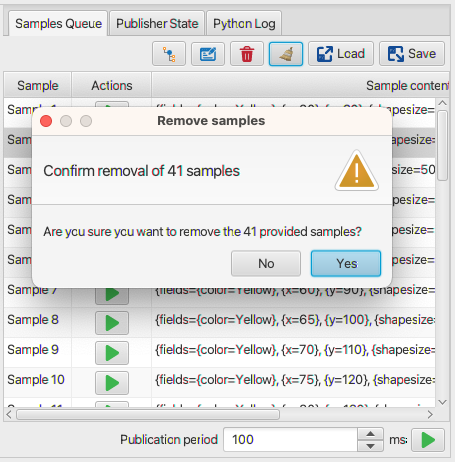
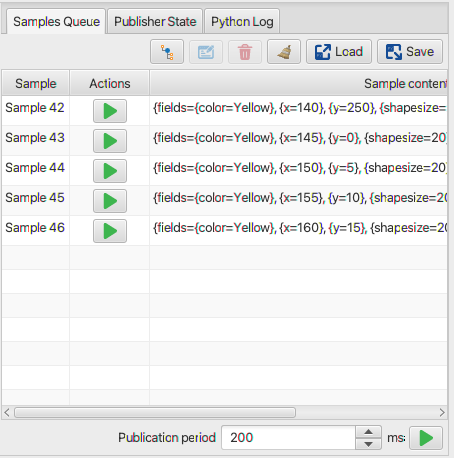
Now our Samples Queue is empty. Click
at the top of the
Samples Queue and select the stored file to reload the saved Samples Queue.Finally, let’s change the maximum size of the Samples Queue. Click
, then change the Samples Queue size to 5 and
press the tab key.If there are more than 5 samples in the Samples Queue, the bottom section of the dialog becomes available so you can choose how you want to trim the queue. Select Trim first elements from the queue and click OK.
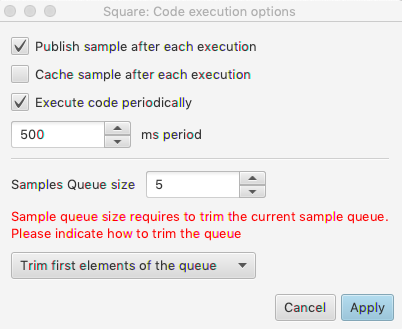
The Samples Queue size is now reduced to 5 items. If new samples are published, those samples will replace the existing samples.
To finish this section of the tutorial, change the code execution options
as pictured below. These changes will prevent Admin Console from
executing the code periodically, publish the sample after each execution,
and cache the samples.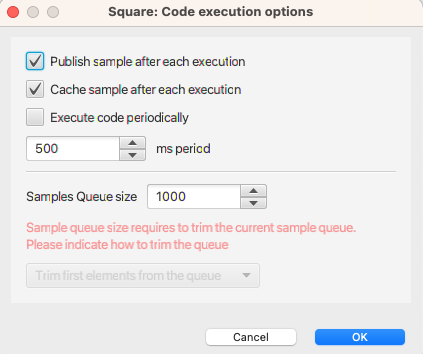
2.2.11.8. Interaction with Sample Log
Admin Console allows interaction between the Sample Log and the Publisher View. When a Sample Log is created for the same Topic (or a Topic with an equivalent data type), it is possibe to move samples from the Sample Log to the Samples Queue.
Before performing interactions between the Sample Log and the Publication View, clear the Samples Queue. Select the
button in the
Samples Queue tab to make sure that there are no samples available. When
prompted, confirm that you want to remove all the samples.Next, create a Subscriber for our Square Topic and show a Sample Log for that Subscriber. To do this, right-click the Square Topic in the DDS Logical View and then select Visualize > Sample Log.
If prompted to switch to Data Visualization Perspective, select No.
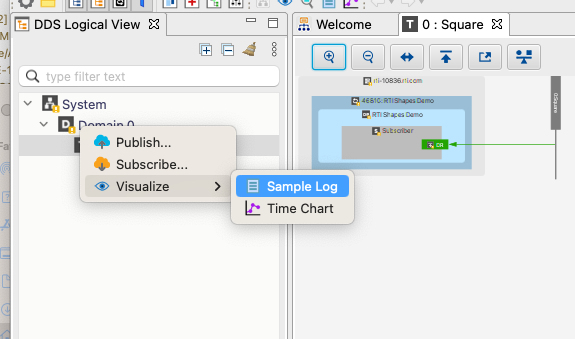
In the bottom panel, a Sample Log tab opens with no samples in it.
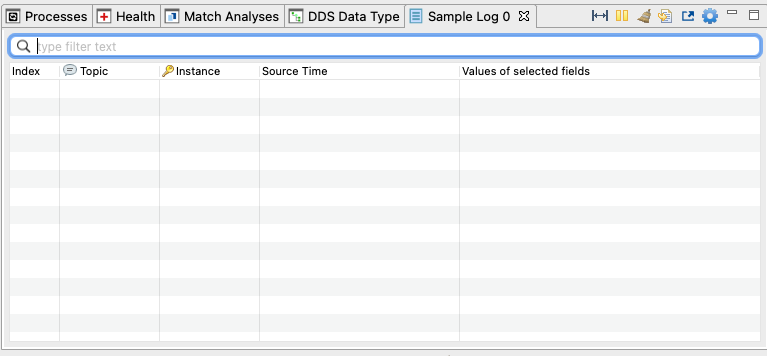
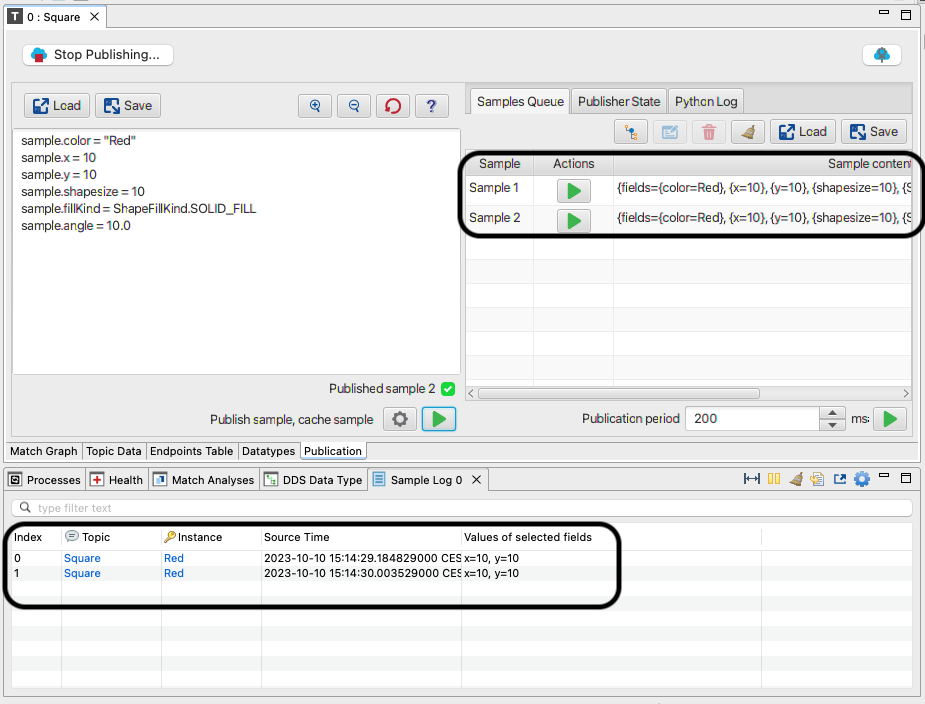
In the Publications tab of the Topic View, publish two samples using the following code.
sample.color = "Red"
sample.x = 10
sample.y = 10
sample.shapesize = 10
sample.fillKind = ShapeFillKind.SOLID_FILL
sample.angle = 10.0
The two published samples appear both in the Samples Queue and in the Sample Log as seen in the following image.
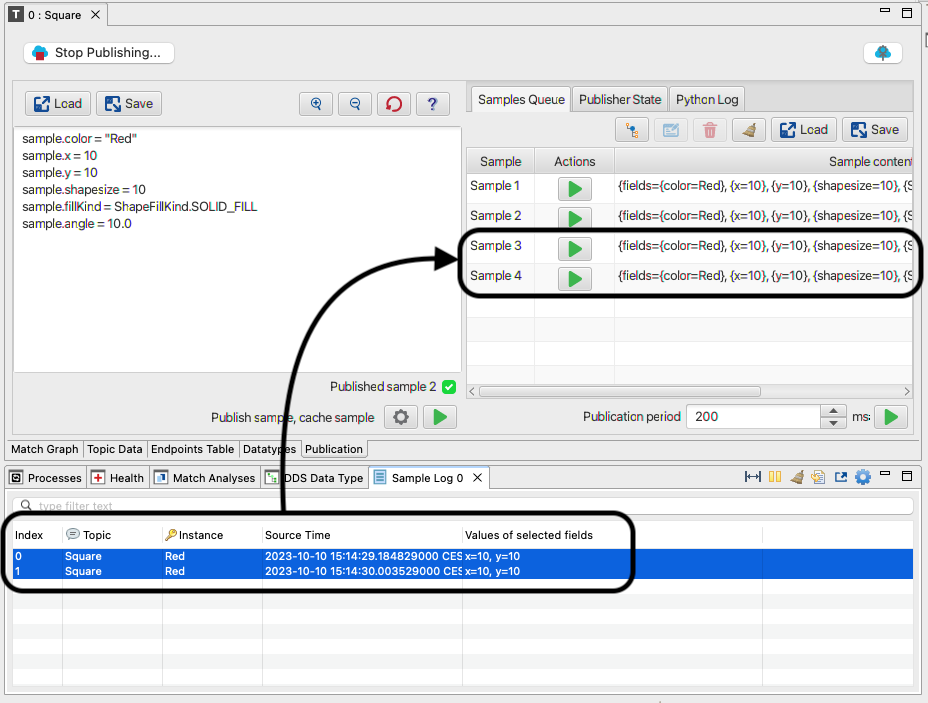
To copy the samples from the Sample Log to the Samples Queue, select the two samples in the Sample Log, then drag and drop them in the Samples Queue tab. Admin Console creates a copy of them in the Samples Queue; these copies can be used like any other sample in that queue.
Note
Any sample that is stored in the Sample Log can be added to the Samples Queue; it is not necessary to create that sample from the Admin Console Publisher.
In addition, sample archives created from the Sample Log can be loaded into the publication Samples Queue using the Load command.
2.2.11.9. Create an Admin Console publication for undiscovered Topics
Admin Console allows you to create a Publisher for Topics that have not yet been discovered. Publishers can be created from either the System or Domain nodes in the DDS Logical View.
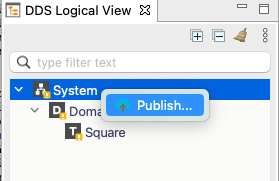
To create the Publisher, right-click the System node in DDS Logical View, then select Publish… in the context menu.
When creating a Publisher for undiscovered Topics, you can specify the Topic name to which you want to publish data. Additionally, if the Publisher is created from a System node in DDS Logical View, you can also select the domain you want to publish to. The list of available domains is restricted to those to which Admin Console is joined.
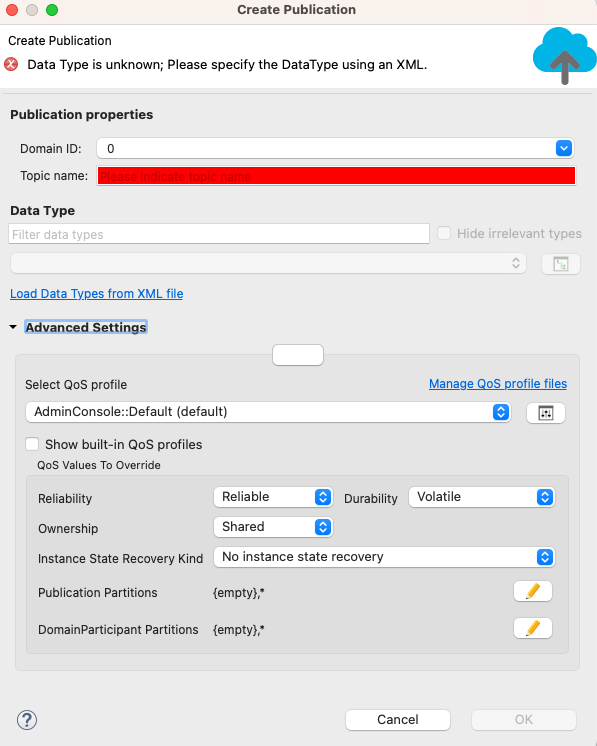
To create the Publisher, the Topic name and the data type definition in XML format are required, as when creating a Subscription when the data type is unknown.
2.2.11.10. Stopping the publication
Admin Console maintains information about the current publication configuration until the Publication is closed. If we close the Topic View, the publication remains active; however, if the code is being executed periodically, it is stopped when the view is closed.
Additionally, the configuration is stored; so the next time you open the Publication tab in the Topic View, it will contain the same samples and code that existed when the view was closed.
To finish this tutorial and completely stop the publication, select the Stop Publishing button at the top. The command is also available from the right-click context menu in the DDS Logical View.
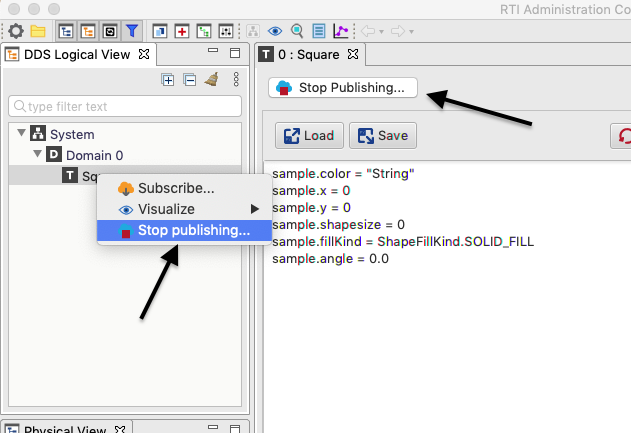
When stopped, the publication is completely destroyed, removing both the Entities created by Admin Console and the stored information. When the publication is stopped and the Publisher is regenerated, the code in the code editor area and the samples in the Samples Queue will not be restored.